ChatGPT
 Claude
 Perplexity
 Google AI
To connect your Shopify store to Fluenceur, start in Fluenceur, at sign-up or in Settings, then approve the app on Shopify's screen: no store address to type, no key or pixel to install. Your orders and discount codes then stay in sync; see the Shopify integration page for details.
What do you need before you start?
You need a Fluenceur account, or a sign-up in progress, and owner access to the Shopify store, or a staff account allowed to install apps, since Shopify reserves installs to those accounts. Any Shopify plan and any store currency work.
How do you connect your Shopify store during sign-up?
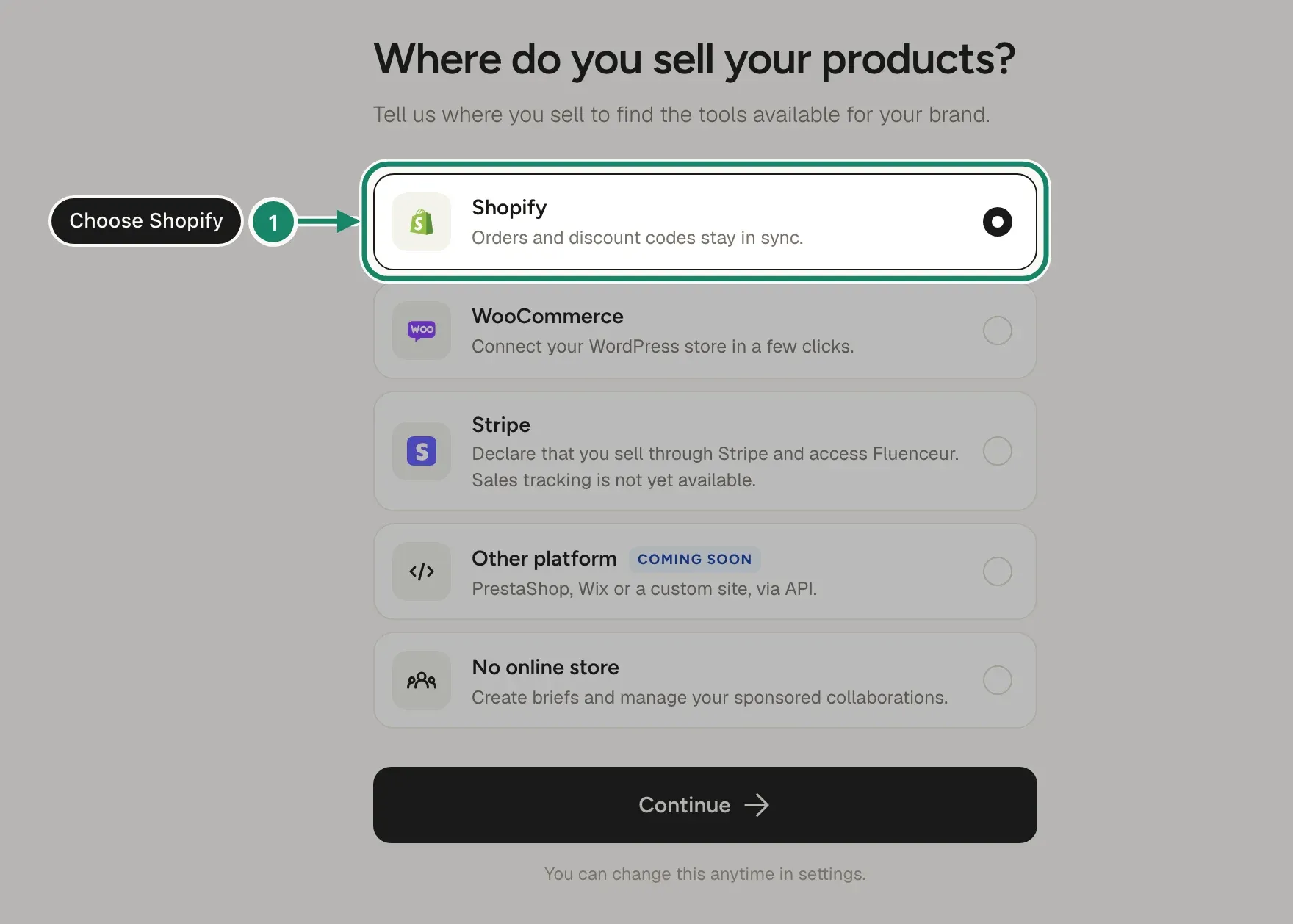
In three steps: choose Shopify, click Connect my Shopify store, then click Install on Shopify's screen.
- Under "Where do you sell your products?", select Shopify.
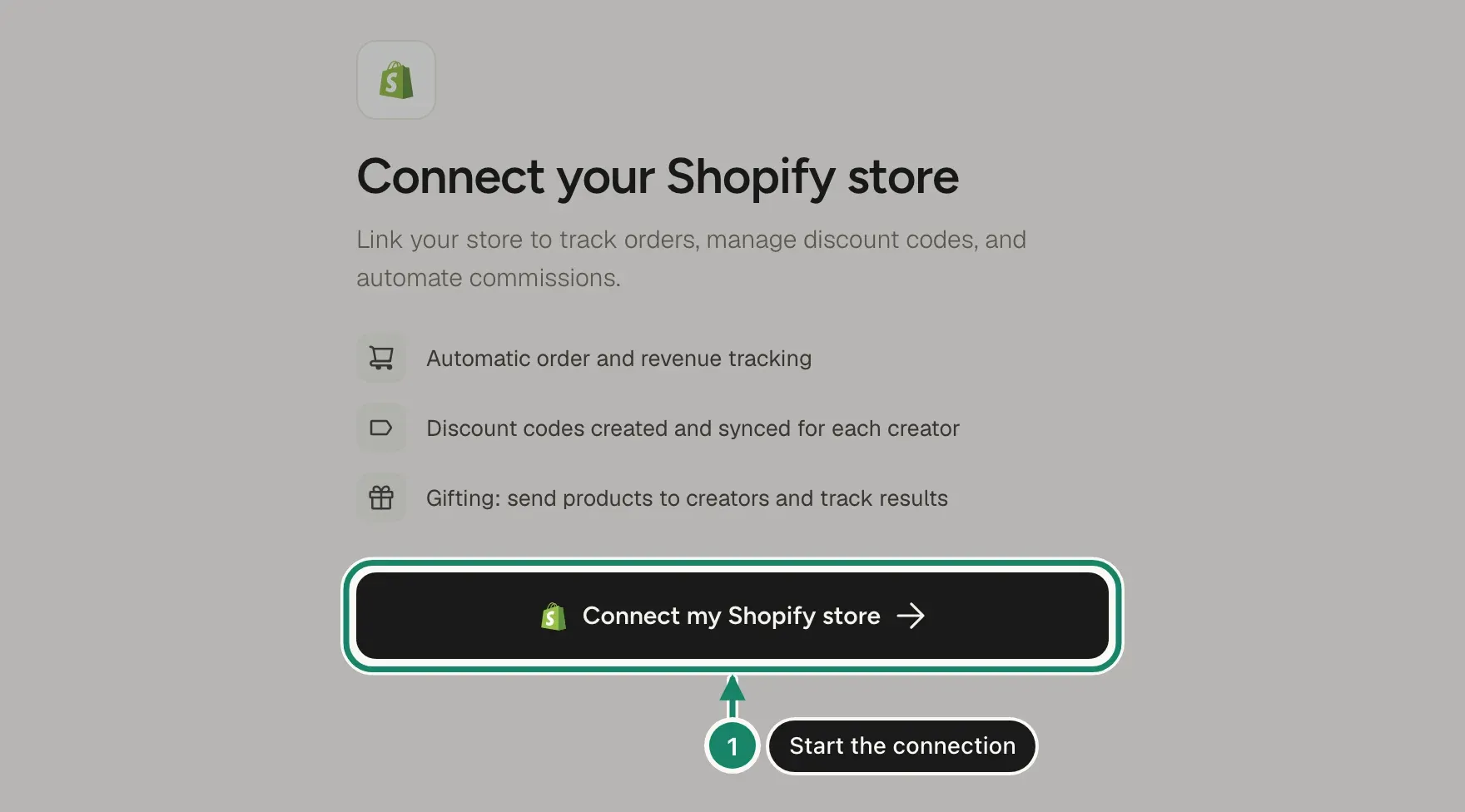
- On the "Connect your Shopify store" screen, click Connect my Shopify store. Fluenceur sends you to Shopify, which recognizes the store you're logged into.
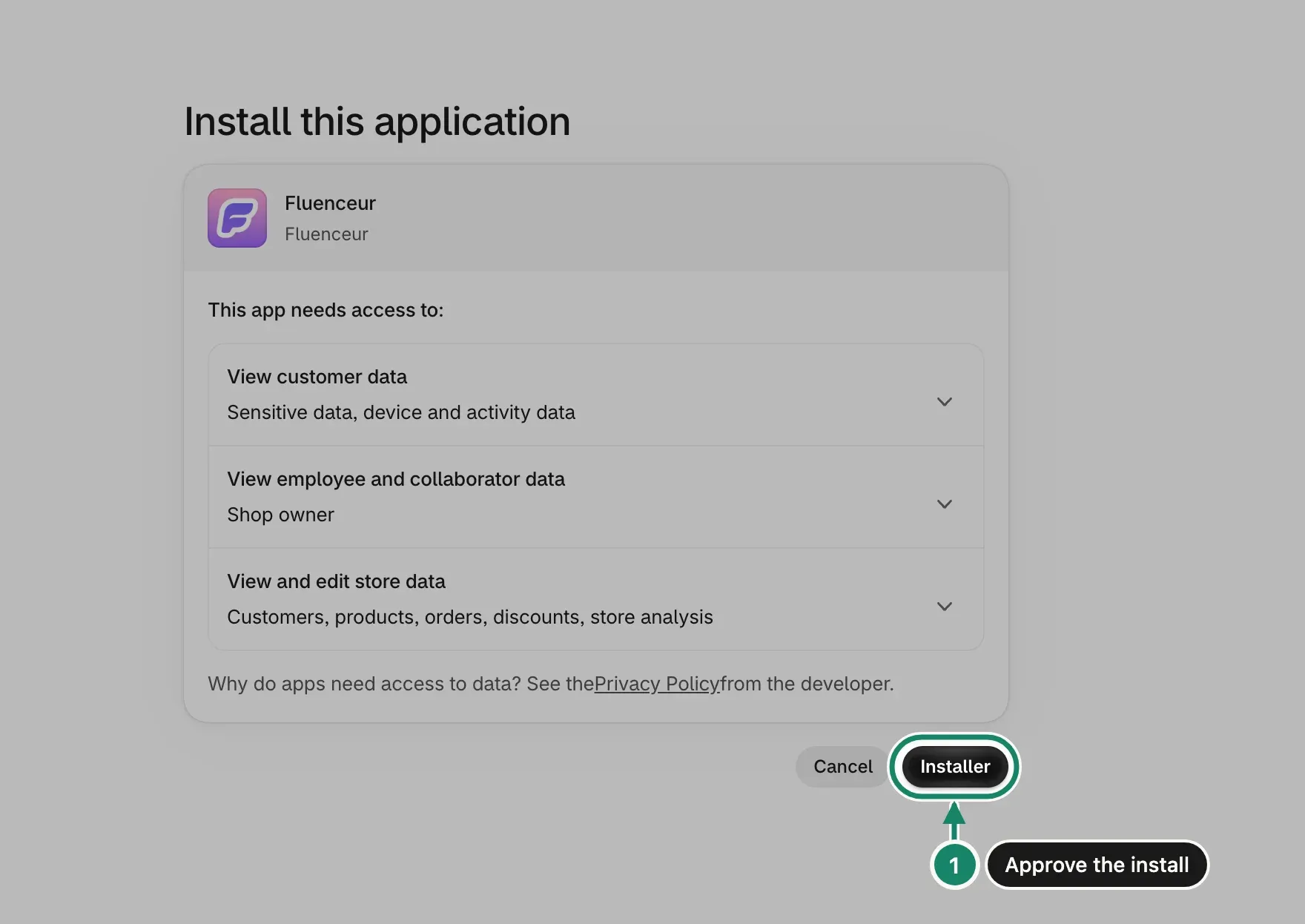
- On Shopify's authorization screen, check the store name and click Install. Fluenceur requests access to your products, discounts, orders, and customers so it can create your creators' codes and credit their sales.
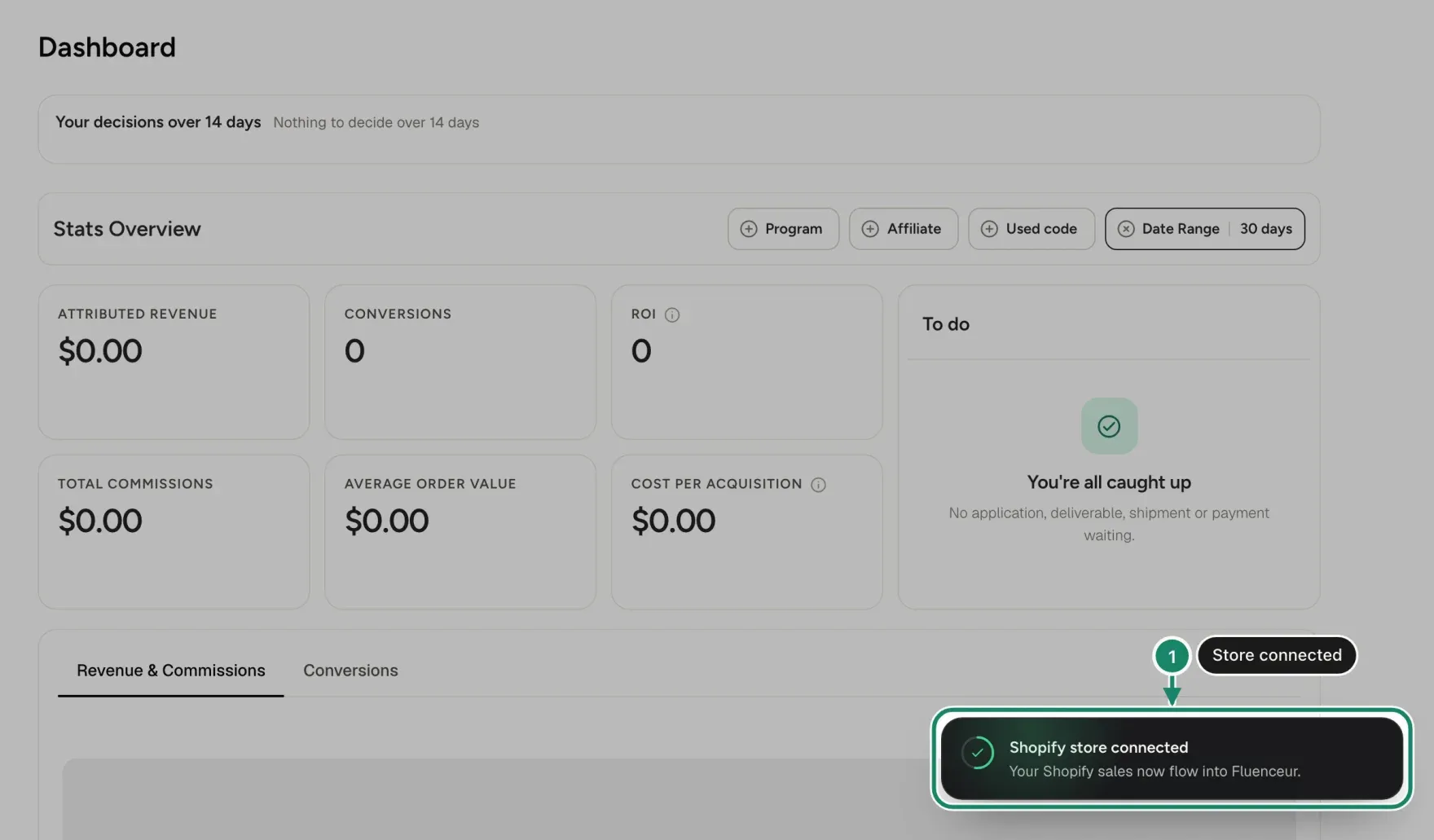
- Back on your Dashboard, Fluenceur confirms "Shopify store connected." If Shopify asks you to approve the subscription, approve it.
How do you connect your Shopify store from Settings?
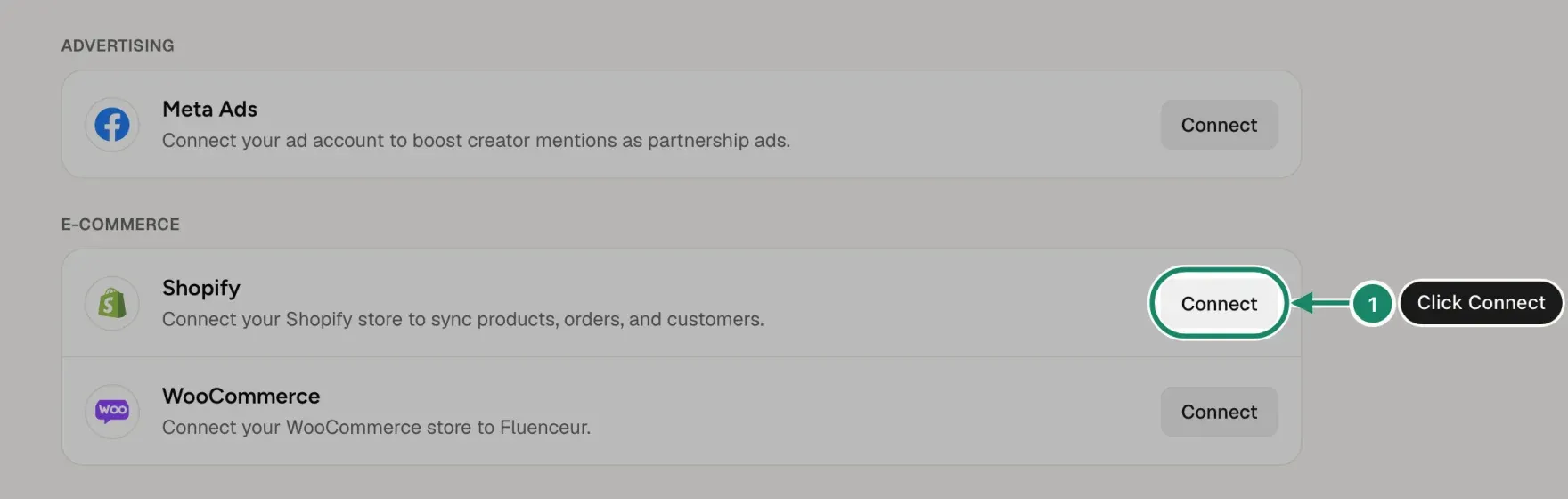
In Settings, Integrations, under E-Commerce, click Connect on the Shopify card, then click Install on Shopify's screen, just like at sign-up. Use this path if you signed up without a store or picked another sales platform, a choice you can change anytime.
How do you know your store is connected?
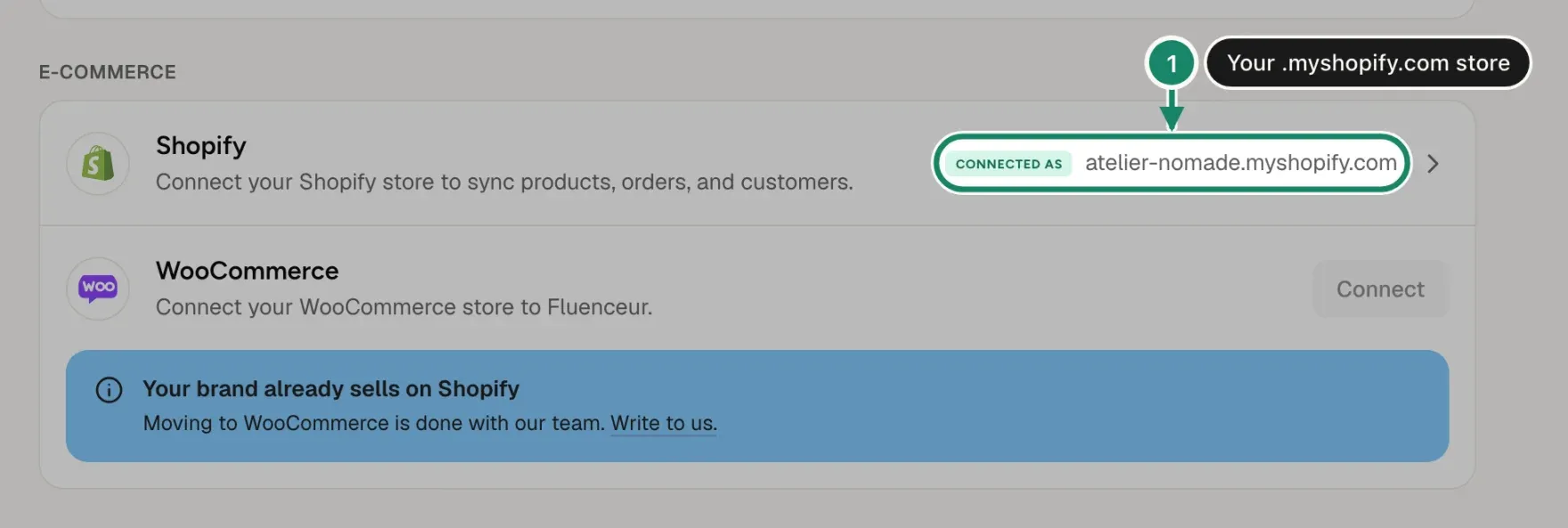
Your Shopify card, in Settings, Integrations, shows "Connected as" followed by your store's .myshopify.com address. In Shopify, Fluenceur appears under Settings, Apps.
Discount codes: nothing to do. As soon as a creator joins one of your affiliate programs, Fluenceur creates their code in Shopify with the program's discount, and stops it if you pause or remove the creator. You enter nothing in the Shopify admin.
How do you disconnect your Shopify store?
You disconnect in Shopify, not in Fluenceur: the Disconnect button on the Shopify card opens the "Uninstall from Shopify" guide.
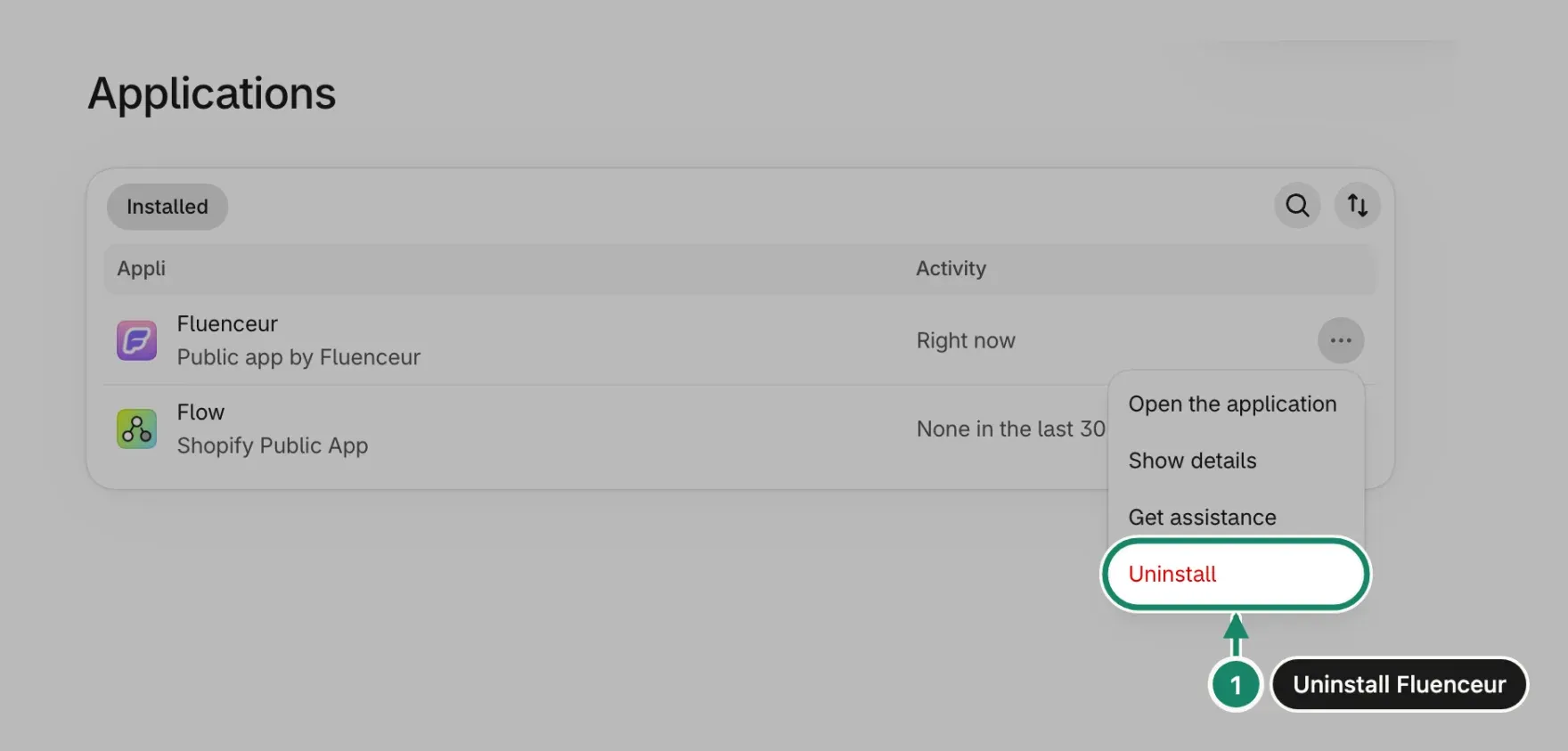
- In the Shopify admin, open Settings, then Apps. On the Fluenceur row, click the … menu, then Uninstall. Fluenceur pauses your affiliate programs and cancels pending commissions.
- In Shopify, under Discounts, delete your creators' codes: they stay active after the uninstall, but no sale is credited to them anymore.
Frequently asked questions
Can I install Fluenceur from the Shopify App Store?
No. An install from the App Store doesn't link the store to your Fluenceur account: the connection starts in Fluenceur, which sends you to Shopify.
My store is already connected to another Fluenceur account. What should I do?
A store connects to one account only, so Fluenceur shows "This store is already connected to another Fluenceur account. Contact us to move it to yours." If you can access the other account, uninstall the app from the Shopify admin, then reconnect from the right account. Otherwise, click Contact us and the team moves the store to yours.
Do I need to edit my theme or install a pixel?
No. When you connect, Fluenceur turns on tracking in your store automatically: nothing to paste into your theme.
Key takeaways
- Connecting Shopify to Fluenceur takes three steps: choose Shopify, click Connect my Shopify store, click Install on Shopify's screen.
- The Shopify card in Fluenceur shows "Connected as" followed by your store once it works.
- To disconnect, uninstall Fluenceur in the Shopify admin, then delete the creator codes in Discounts.
Was this helpful?